
Project Myriam – Life and Explorations
Play Project Myriam – Life and Explorations
Project Myriam – Life and Explorations Screenshots


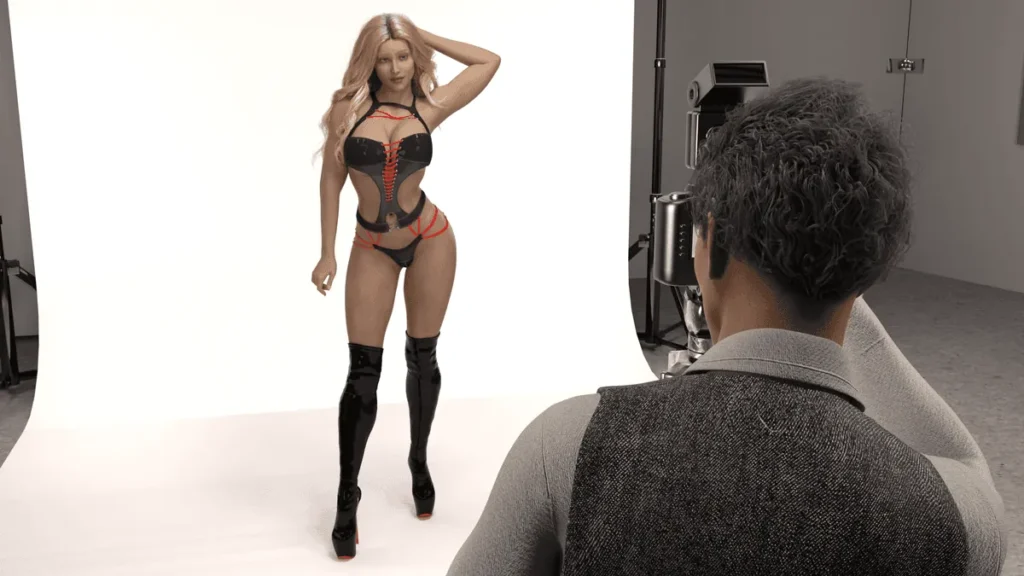
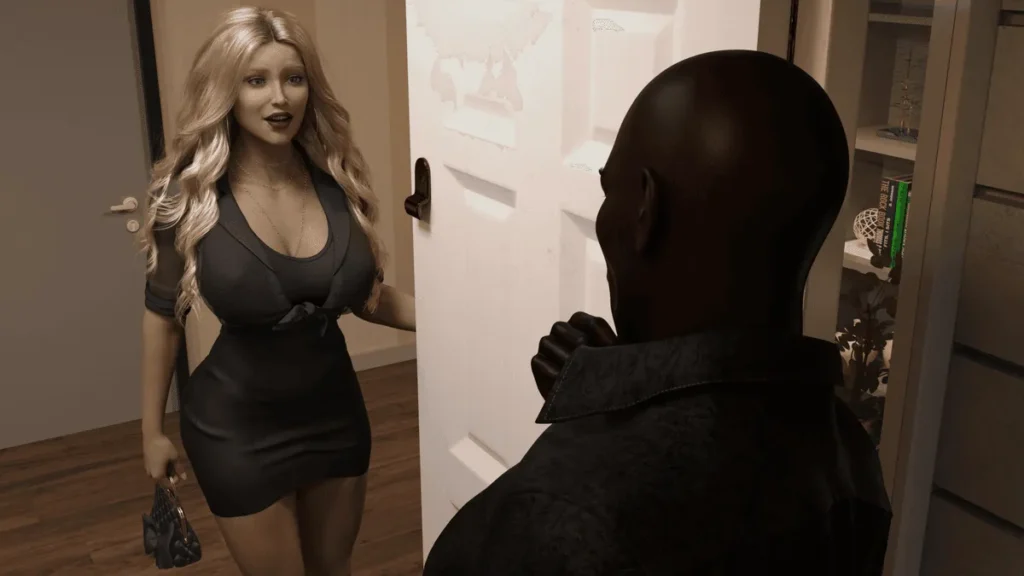

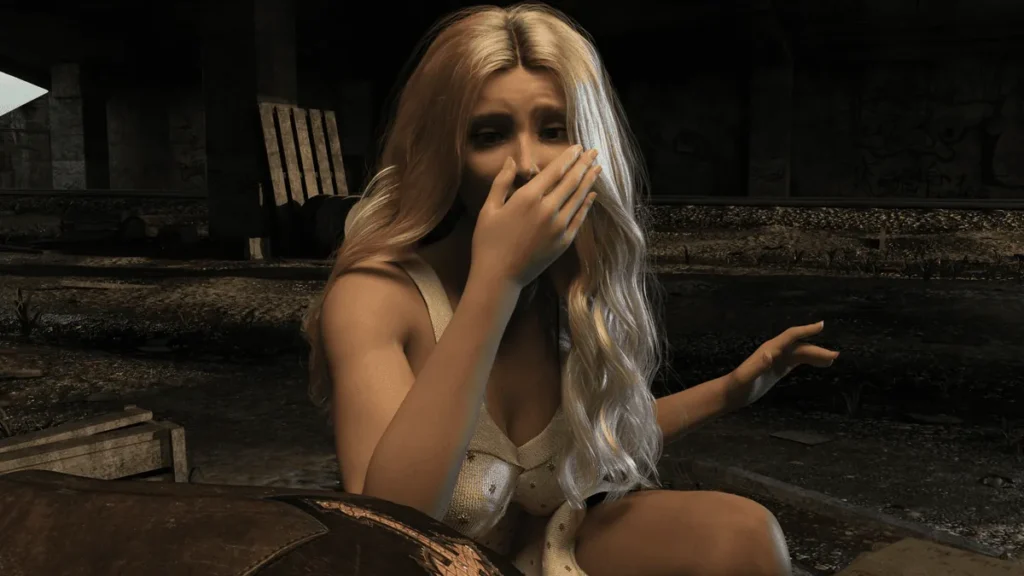
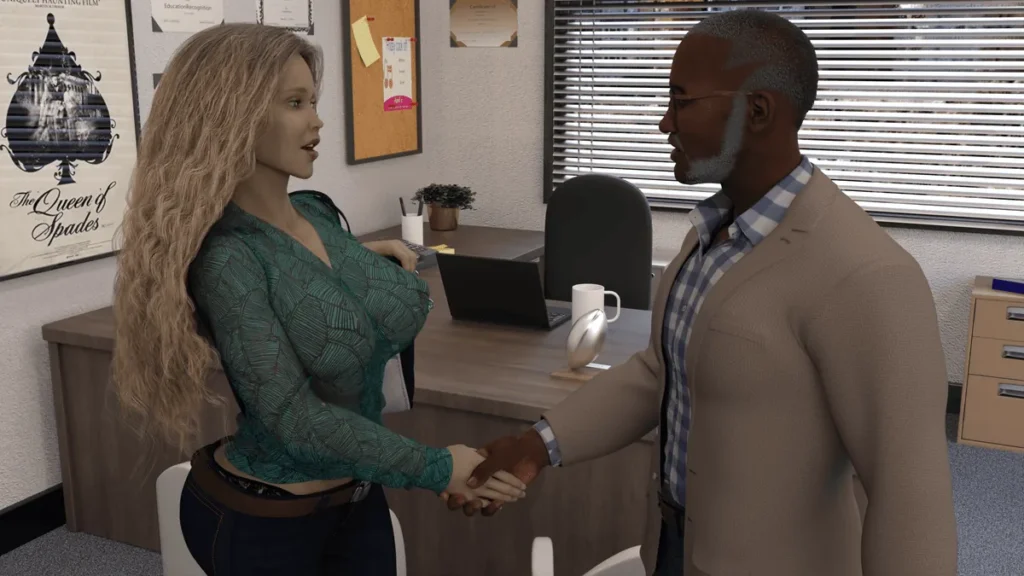


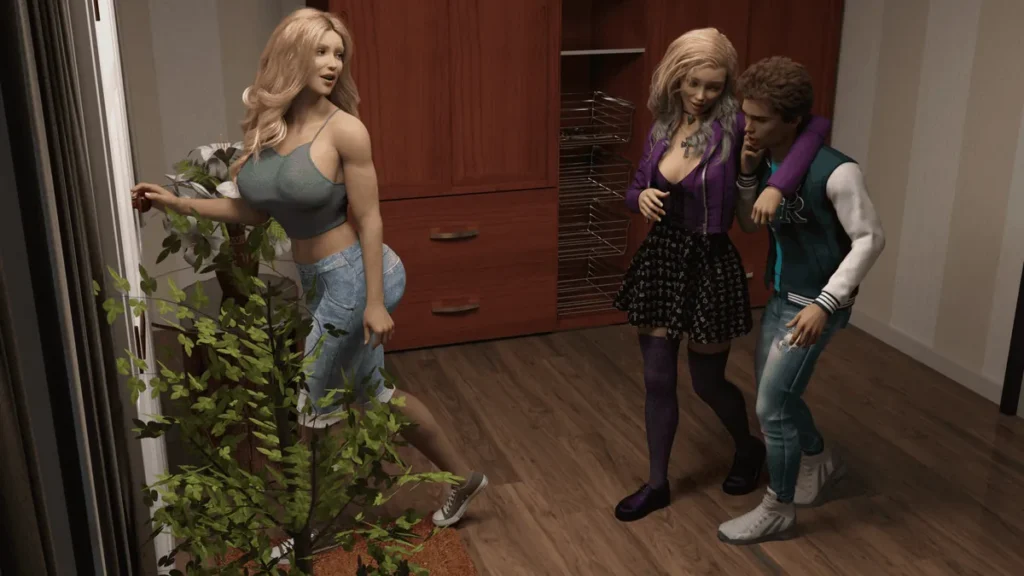


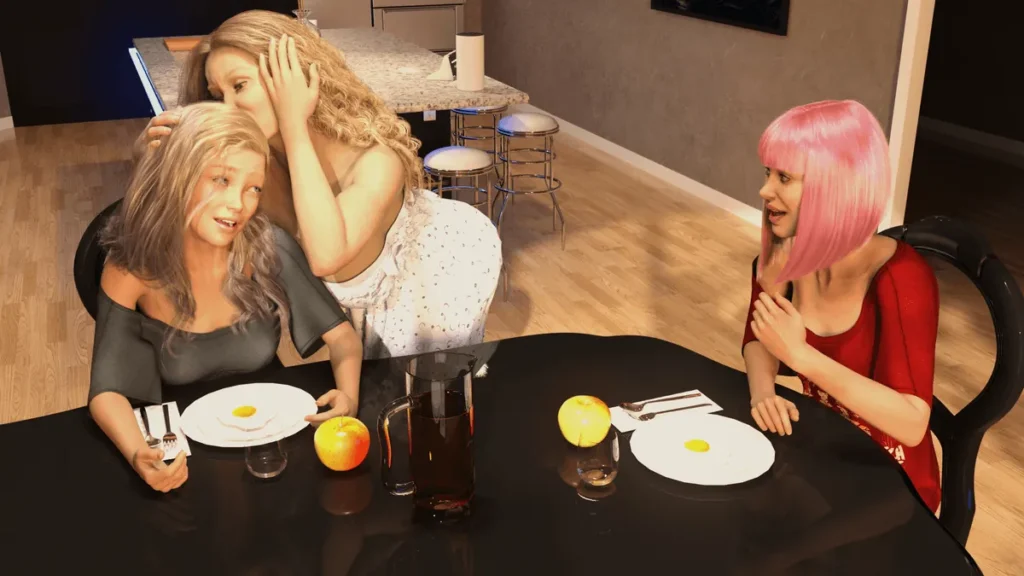


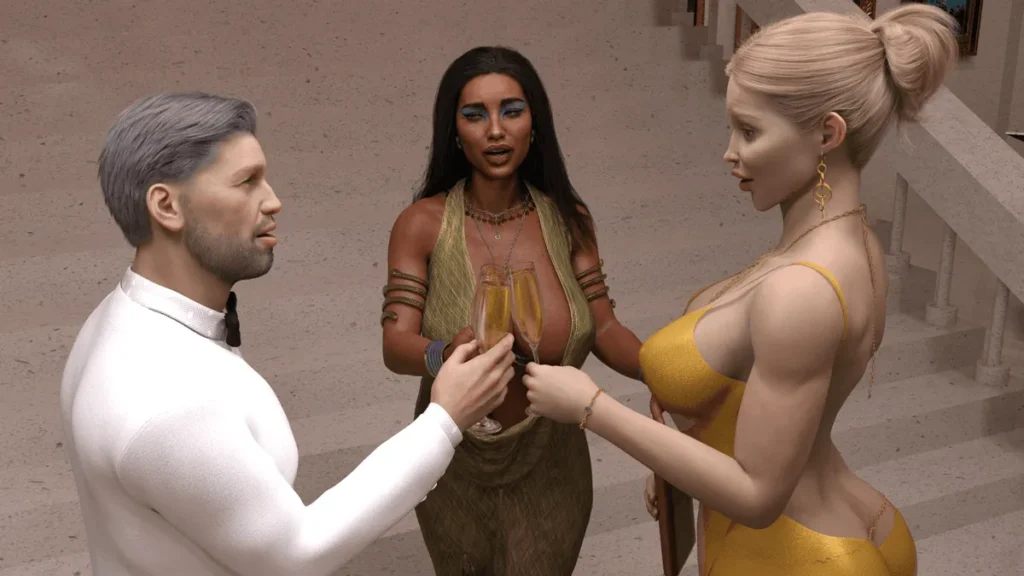


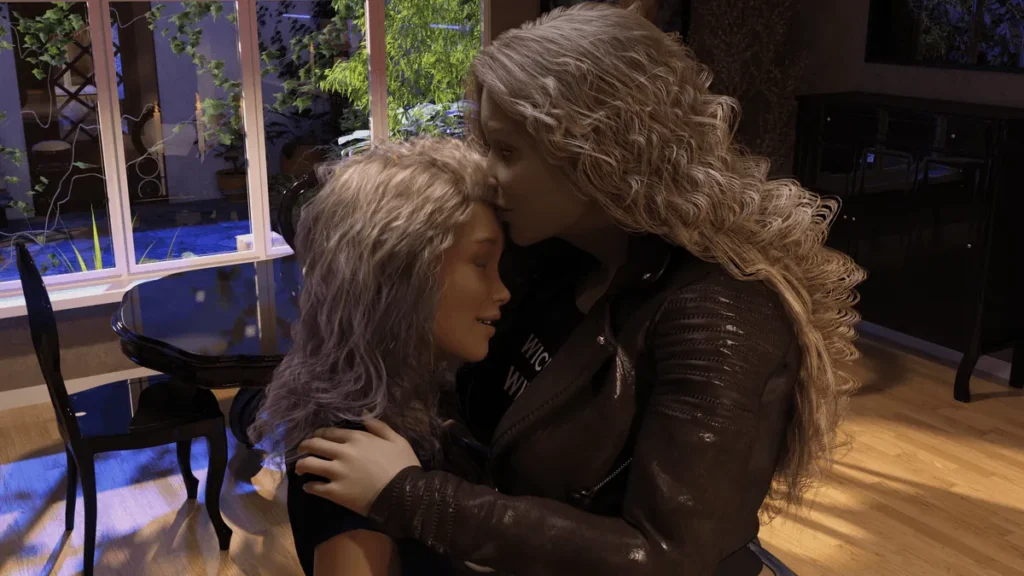
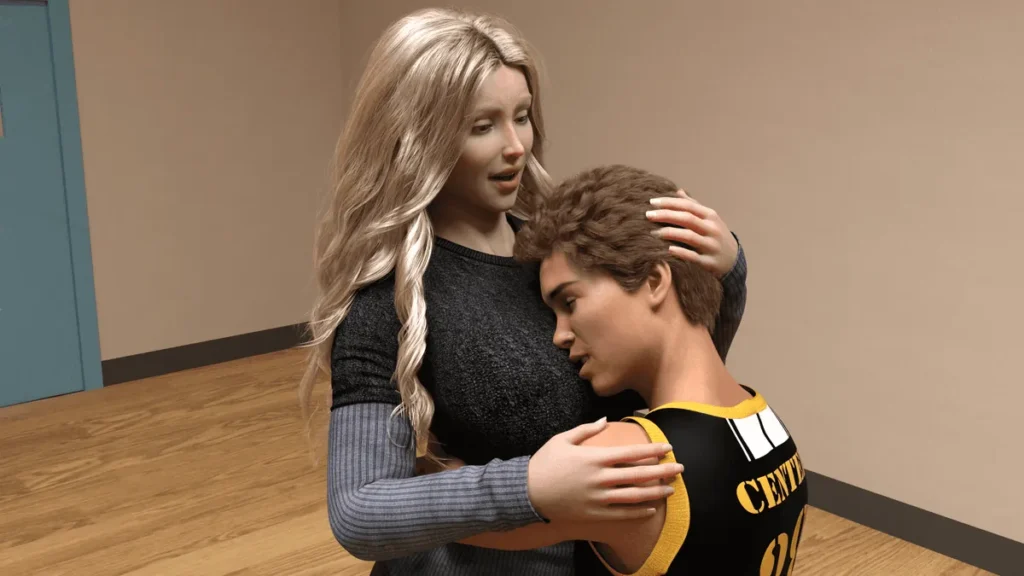




Project Myriam – Life and Explorations review
A player-focused walkthrough, analysis, and exploration of Project Myriam — Life and Explorations
Project Myriam — Life and Explorations is a choice-driven 3D adult game that follows Myriam as she navigates life changes, relationships, and morally challenging choices in a new city; this article will walk you through the game’s structure, key choices, and practical tips to shape Myriam’s story. I first discovered the game while exploring narrative-driven indie titles, and the blend of slice-of-life decision-making with branching adult content immediately drew me in. In this guide I share my playthrough notes, choice consequences, and setup tips so you can explore Myriam’s possible lives with clarity and intention.
Getting Started: Versions, Installation, and Safety
Let’s be honest, your journey into Project Myriam – Life and Explorations shouldn’t begin with a frustrating hunt for the right file or a panic attack because your save just vanished. 🕵️♂️ I remember spending an hour once downloading what I thought was the latest chapter, only to find it was an older version masquerading with a confusing filename. Total buzzkill. My goal here is to make sure that never happens to you.
This chapter is your trusty manual for getting the game from the web onto your device, ready to play, without any nasty surprises. We’ll crack the code of the version numbers, walk through installation step-by-step, and most importantly, talk about keeping your game and your system safe. Think of this as the essential prep work before the real exploration begins.
Which version should I pick and where to get it?
Navigating the different Project Myriam version labels can feel like deciphering ancient runes. You’ll see names like Ch. End.01a+p, Ch.2.06b, or just v4.1. What does it all mean? Let’s break it down, because choosing the right one is your first major decision.
Typically, the naming follows a pattern: “Ch.” stands for Chapter. So, “Ch. End.01a+p” is specifically the final release of Chapter 1. The “End” signifies it’s the conclusive version of that chapter, “01” is the chapter number, “a” is a minor revision, and that mysterious “+p” often indicates it includes an additional patch or extra content bundled in. Later chapters might simply be “Ch.2.06b”. Sometimes, developers shift to a simpler numbering system like “v4.1” for major updates that might span multiple story arcs.
So, which one do you want? If you’re starting fresh, you want the most complete, up-to-date package. As of my latest deep dive, that’s often the Project Myriam version Ch. End.01a+p or its equivalent final release. This version usually has all the bug fixes, polished scenes, and bonus scenes the developer intended.
Personal Insight: I always recommend starting with the latest “final” or “end” version of a chapter. Playing through an early, buggy version can ruin your immersion when a scene glitches out or a choice doesn’t trigger correctly. It’s worth the wait for the polished experience.
Now, where do you get it? This is where safety starts. Your primary ports of call should always be:
* The Developer’s Official Itch.io Page: This is ground zero. It’s the most trusted source for clean, official builds.
* The Developer’s Patreon or SubscribeStar: For early access to newer chapters or supporter-only versions, this is the official route.
* Reputable Community Hosts like F95Zone: While not official, some communities have dedicated threads where trusted members mirror the official links. The key is to ensure the uploader is linking directly to the developer’s official source or a known-good mirror.
Avoid random “free game download” blogs or shady file-hosting sites that promise “cheats” built-in. They’re often riddled with malware or will give you an outdated, modified file. Your Project Myriam download should come from a traceable, community-vetted source.
To simplify, here’s a quick reference table for common version types:
| Version Name Example | What It Usually Means | Best For… |
|---|---|---|
| Ch. End.01a+p | The final, patched release of Chapter 1. | New players starting the story. The definitive experience. |
| Ch.2.06b | A later chapter (2), with iterative updates (06b). | Continuing your save after finishing earlier chapters. |
| v4.1 / Full v4.1 | A major re-release or compilation of multiple chapters. | Getting a large chunk of the story in one go. Check if it’s a remake. |
| Public / Free Release | The version available to everyone after a delay. | Players who don’t mind waiting for the latest content. |
Installation steps for PC and Android
Got your file? Excellent. Now let’s get it running. The process differs slightly between platforms, but neither is particularly difficult. I’ll guide you through both.
To install Project Myriam on your PC (Windows):
Most PC releases for games like this are built with Ren’Py and come as a simple ZIP archive. You don’t need a complex installer.
- Download & Verify: Complete your Project Myriam download from the trusted source. The file will likely be a
.zipor.rararchive. Before doing anything, run a quick virus scan on the downloaded file. Better safe than sorry! - Extract the Archive: You’ll need a tool like 7-Zip or WinRAR. Right-click the downloaded archive and select “Extract All…” or “Extract to [Folder Name]”. Choose a simple, easy-to-remember location on your hard drive, like
C:\Games\ProjectMyriam. Avoid the Desktop or Downloads folder for the long term—it gets messy. - Find the Executable: Navigate to the folder you just extracted. Inside, look for the
.exefile to launch the game. It will often be named something likeProjectMyriam.exeor simplyGame.exe. - Launch and Play: Double-click the
.exe. The first launch might take a moment as it caches files. The game should start, and you’re ready to go! You can right-click the.exeand select “Send to > Desktop (create shortcut)” for easier access later.
For macOS and Linux:
The process is very similar. The download is usually a .zip or .dmg (for Mac). Extract it, and you should find an application file (.app on Mac, a .sh or executable on Linux). On Linux, you may need to grant execution permissions via the terminal (chmod +x [filename]).
To install Project Myriam Android APK:
Installing an APK (Android Package Kit) is straightforward but requires you to change one security setting, as you’re installing from outside the Google Play Store.
- Enable “Unknown Sources”: Go to your Android device’s Settings > Security (or Apps & Notifications on newer devices). Find the option called “Install unknown apps” or “Unknown sources.” You’ll grant permission specifically to your browser or file manager app.
- Download the APK: Use your device’s browser to get the Project Myriam Android apk file from the official source. Again, be hyper-aware of where you’re downloading from.
- Open the File: Once downloaded, tap the notification or open your “Downloads” folder and tap the APK file. Your device will ask for confirmation to install.
- Install and Launch: Tap “Install.” Once complete, you can tap “Open” or find the game’s icon in your app drawer. Remember, you can turn the “Unknown Sources” permission off again after installation for security.
Common Troubleshooting Pro-Tips:
* Missing DLL errors on PC: This usually means you need the Visual C++ Redistributables. A quick web search for “Microsoft Visual C++ Redistributable” will lead you to the official Microsoft page to download and install them.
* Game won’t start/Black screen: Ensure your extracted game folder isn’t buried in a deeply nested directory or placed in a system-protected folder (like Program Files). Try running the .exe as an administrator.
* Save file location: On Windows, your Project Myriam backups (saves) are usually in C:\Users\[YourUsername]\AppData\Roaming\RenPy\[GameName]. Knowing this path is crucial for manual backups!
Safety, mods, and backups
This might be the most important section you read today. The community around these games is creative, but the ecosystem can be a wild west. Let’s talk about Project Myriam mods safety and the holy grail of gaming: Project Myriam backups. 🔒
The Golden Rule of Mods: If a mod isn’t hosted on a reputable, community-focused forum where users discuss and verify it, be extremely skeptical. A mod is essentially a bundle of code that alters your game. A malicious one can do anything from corrupting saves to compromising your system.
Personal Anecdote: I once got overeager and installed a “graphics enhancement” mod from a random Discord link. Not only did it break my game’s UI, but it also started triggering false-positive alerts from my antivirus. I had to do a full reinstall. The hour I lost was a cheap lesson.
Always, always do this before trying a mod:
1. Create a Manual Save Backup: Before you even download the mod file, go into the game and create a named save in a slot you don’t use. Then, navigate to the save folder location I mentioned earlier and copy the entire saves folder to your desktop or another safe location. This is your lifeline.
2. Research the Mod: Look for comments, feedback, and the reputation of the modder. On good forums, problematic mods are called out quickly.
3. Test in Isolation: Apply the mod and immediately test the game. Does it start? Do the basic functions work? If something feels off, revert immediately by deleting the mod files and restoring your backup.
Creating and Managing Save Backups:
This is non-negotiable. Project Myriam backups are your insurance policy against bugs, corrupted saves, or simply wanting to revisit a major choice.
* Use Multiple Save Slots In-Game: Don’t just overwrite slot 1. Use slots 1-10 for major milestones (e.g., “Before Choosing X,” “After Meeting Y”).
* Manual Folder Backups: Periodically (like after each gaming session or before trying something new), zip up the entire save folder from the AppData path and date it (e.g., ProjectMyriam_Saves_2023-10-27.zip). Store these in a cloud drive or separate hard drive.
* Personal Strategy: I maintain a “Golden Save” folder. Whenever I reach what I feel is a perfect story state, I back it up separately. That way, I can always jump back to that point without replaying 20 hours.
Your vigilance is what separates a smooth, enjoyable experience from a frustrating and potentially risky one. Taking five minutes to verify a source or back up a save can save you hours of grief.
FAQ: Short Troubleshooting Q&A
Q: I installed the game, but when I double-click the .exe, nothing happens or I get an error.
A: This is common. First, ensure you’ve extracted the ZIP file fully—you should be running the .exe from the extracted folder, not the archive. If you get a “missing DLL” error, install the latest Visual C++ Redistributables from Microsoft. Also, try running the game as an administrator.
Q: Where are my save files? I want to back them up manually.
A: On Windows, they are almost always here: C:\Users\[YOUR USERNAME]\AppData\Roaming\RenPy\[GameNameHere]. You can paste that path directly into File Explorer, replacing [YOUR USERNAME] and [GameNameHere] with your details. The saves folder inside is what you need to copy.
Q: Can I transfer my PC save to my Android device or vice-versa?
A: Often, yes! The save files are usually compatible. You need to locate the save folder on both devices (on Android, it’s often in /Android/data/[game.package.name]/files/saves/ or in a similar RenPy path). Copy the save files from one to the other. Make backups first!
Q: The game is running very slowly or the text is glitchy.
A: For PC, try pressing Shift+G (or Shift on startup) to open the Ren’Py launcher. Here you can adjust the renderer (try switching between OpenGL and software), or lower the resolution. For Android, ensure you have sufficient free storage and try closing other background apps.
Q: I applied a mod and now the game crashes. How do I uninstall it?
A: The safest way is to delete the mod files you added (you did keep track, right?) and restore your save folder from the backup you made before installing the mod. If you didn’t back up, you may need to do a fresh Project Myriam download and reinstall, then manually copy only your original save files (if they are separate from the mod) back into the new installation.
Armed with the right version, a clean installation, and a solid backup strategy, you’re now ready to dive into the world of Project Myriam – Life and Explorations with confidence. The technical hurdles are behind you. Your adventure—and your responsibility for its safety—begins now. Happy exploring
Project Myriam — Life and Explorations is a branching narrative experience where small choices compound into markedly different lives for Myriam; by understanding the game’s systems, managing saves, and planning choice strategies you can explore its major arcs efficiently. Use the installation and safety steps before experimenting with mods, map key decision nodes to avoid replaying entire runs, and try the replay templates to see different outcomes. If you enjoyed this guide, try one focused playthrough following a single template, keep annotated saves at each major choice, and share your favorite arc with other players to compare strategies.